Using AI Coding to Detect Team Stagnation: Building a Custom Chrome Extension Kanban

Hi, I’m @fortkle, a Tech Lead and Head of Engineering for the Avvy team at AnotherBall.
In this post, I’ll share how I built a custom Chrome extension that overlays a kanban view on top of Linear — making it easier to spot stagnation and priority misalignment in our Scrum workflow.
The Physical Whiteboard Kanban That Just Worked
Our Avvy development team uses Scrum, with a kanban board at the center of our daily transparency and inspection process.
When I think about kanban, what still comes to mind is the physical whiteboard and sticky notes we used at a previous job.
The setup was simple:
- Draw lanes on the whiteboard with a marker (Todo / In Progress / In Review / Done)
- Arrange cards from top to bottom in priority order
- Place Issues (parent) on the left, with Sub-issues (children) expanding to the right
That alone made it clear what we were working on and in what order across the sprint.
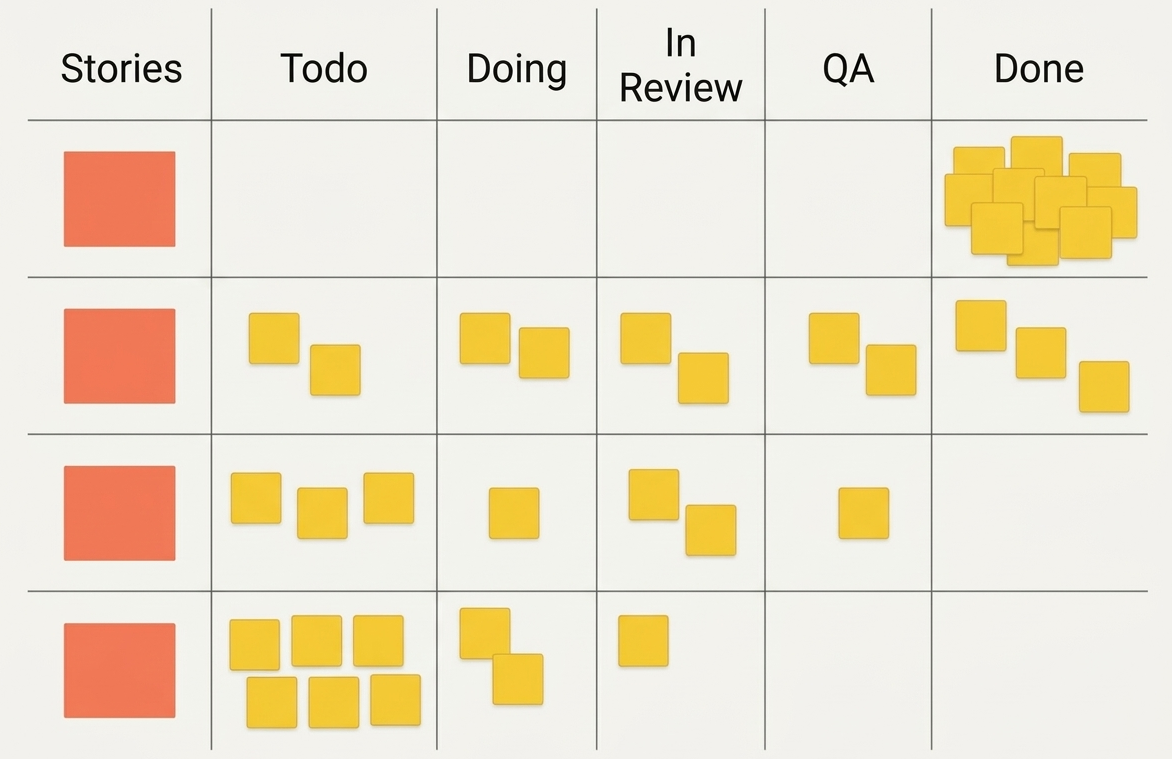
We started with these simple rules, but our kanban evolved as we progressed through sprints.
For example, we printed members’ Slack icons and attached them to magnets to place on cards as assignment indicators. We also wrote WIP limits directly on the whiteboard with markers.
The Kanban Guide states that “how flow transparency is achieved is limited only by the imagination of the Kanban system members,” and the physical whiteboard was exactly that kind of tool.
If you’re interested in creative uses of physical kanban, The Agile Coach’s Toolbox – Visualization Examples is a great read.
Moving to Linear — Recreating “That Feeling”
Our current Avvy team includes remote members working from different regions and countries, so a physical whiteboard isn’t practical. We use Linear for our kanban instead.
Linear has a Board View for card management, but after using it for a while, I noticed several gaps from the whiteboard experience.
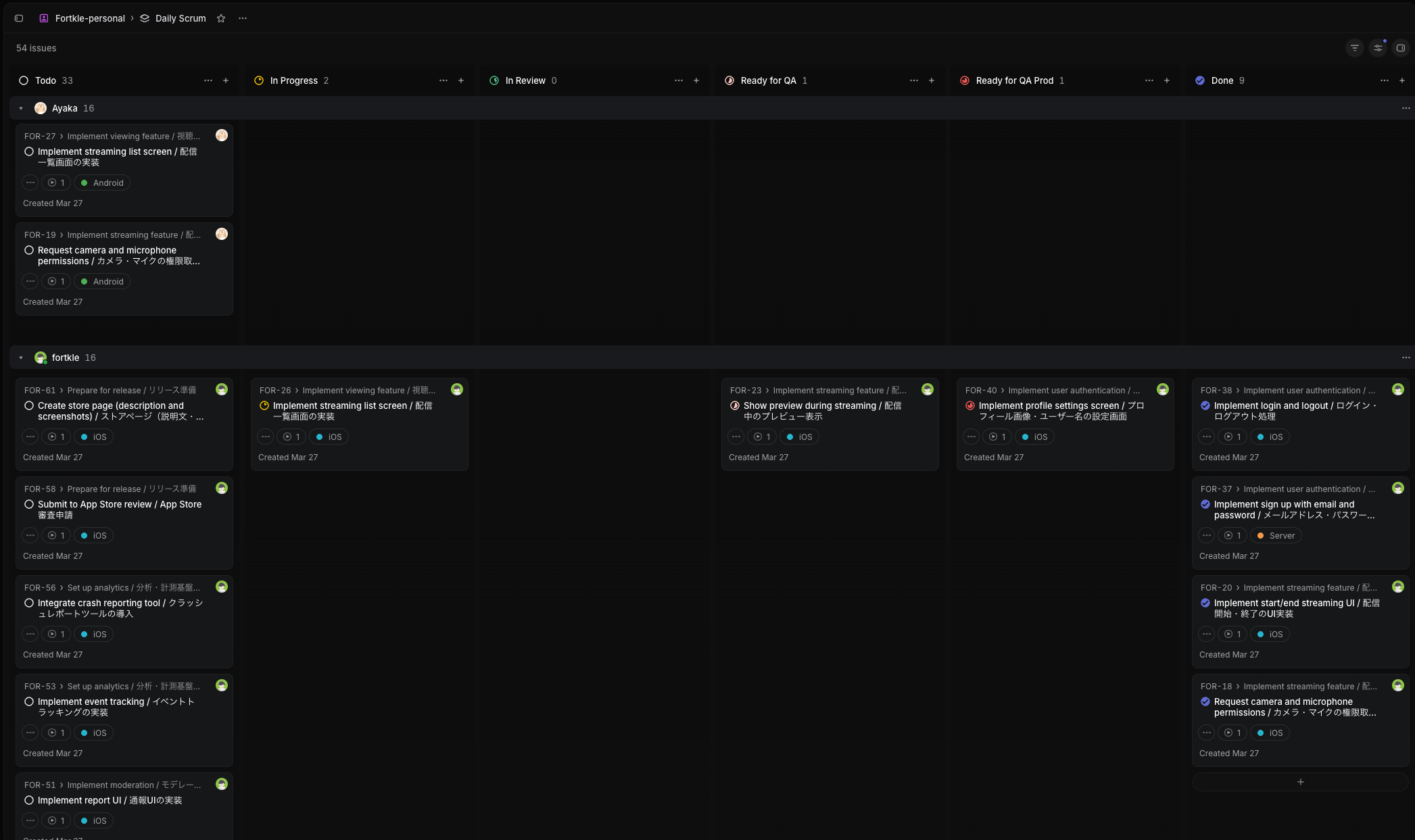
Example of grouping cards by assignee (all data shown is fictional)
- The Issue/Sub-issue parent-child structure can’t be laid out ideally on the board (possible with grouping/sub-grouping, but not ideal)
- The default UI limits how much you can see in one screen, making it hard to grasp the full sprint
- Stagnating cards aren’t easy to spot at a glance
- WIP limits can’t be enforced visually
We kept feeling like, “It works, but it doesn’t have that feeling.”
Overlaying a Custom View with a Chrome Extension
The solution I tried was to overlay a custom view on top of Linear using a Chrome extension.
Since the Linear API provides Issue and Sub-issue data along with status change history, I used that to recreate the whiteboard-era layout in the browser.
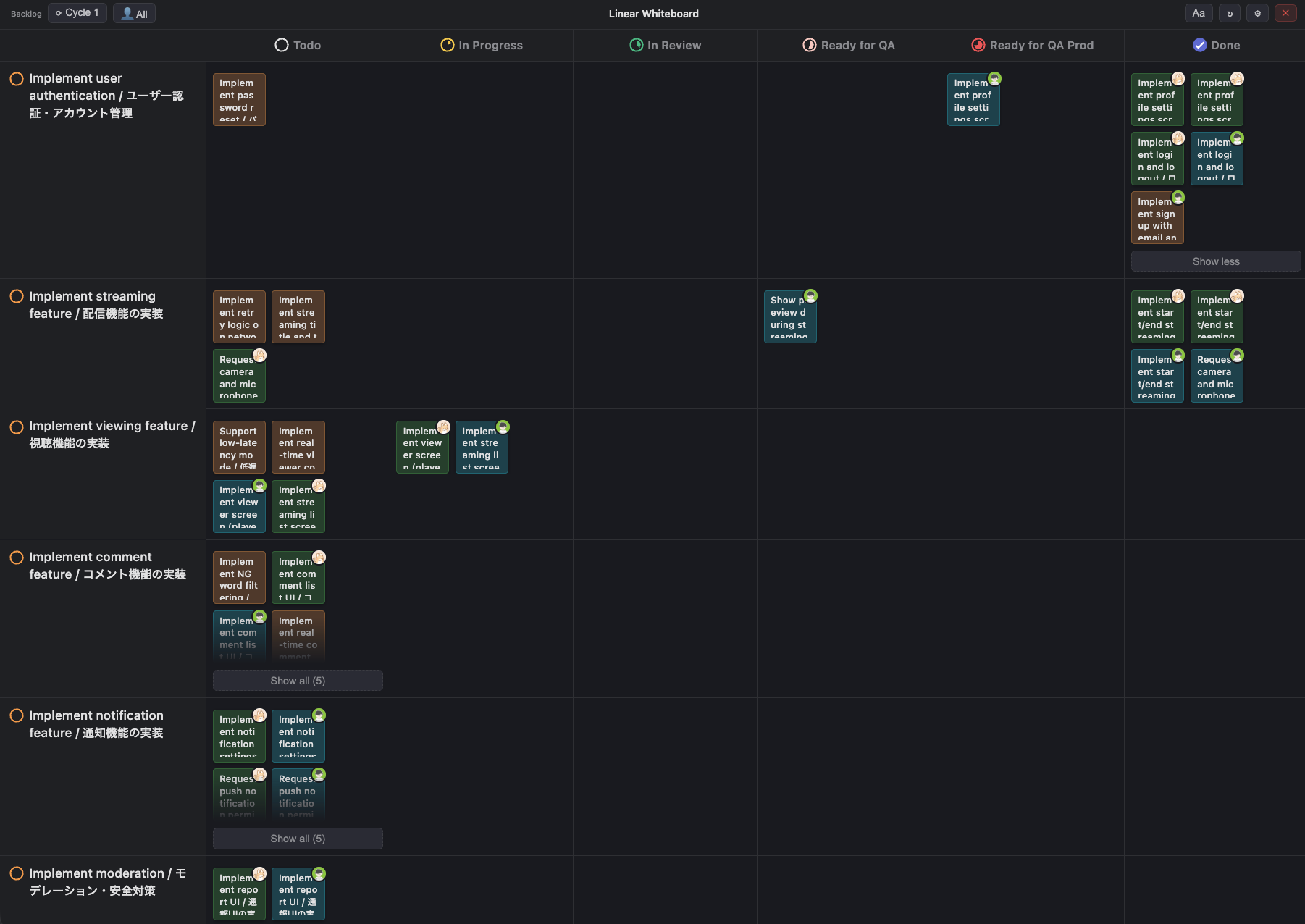
Custom view recreating the physical kanban (all data shown is fictional)
Key features include:
Expanded Issue/Sub-issue parent-child structure
Sub-issues expand from their parent Issue card on the board, making the full picture easy to grasp. Being able to see the entire sprint in one screen is a major plus.
Vertical ordering by priority
Tasks within the sprint are displayed from top to bottom in priority order. As the sprint progresses, cards move toward the upper right in a diagonal pattern — making it easy to notice when lower-priority cards are moving ahead of higher-priority ones.
Handling unexpected tasks
With priority made visible, when an unexpected task comes in, it’s easier to decide: “Let’s drop this lower-priority item and fit in the new task.”
AI Coding Makes “I Just Want to Tweak This” Instant
Building a custom view like this was technically possible before, but AI coding takes it to another level. The key point is that with AI coding, small changes can be made in minutes. Here are a few examples of improvements I made.
Stagnation Indicator
There was a problem: “Even if a member is stuck in In Progress, it’s hard to notice just by looking at the board.” With the physical kanban, we’d draw tally marks on sticky notes to visualize elapsed days.
I told the AI: “I want to visualize elapsed time in each lane. Add an indicator like a 5-segment gauge on the assignee’s avatar — fill one segment per day, up to a maximum of 5 days of stagnation.” The UI came together in just a few minutes.
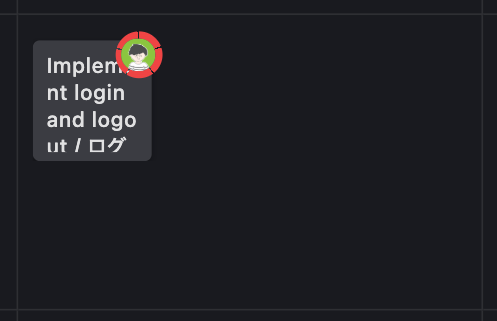
A 5-segment ring indicator appears on the assignee’s avatar in the upper right of each card, filling one segment per day since the card moved to In Progress. Now it’s easy to see at a glance when a card has been stuck for several days.
Since the Linear API provides timestamps for status changes, this was all achievable on the client side — no server-side additions needed.
Filtering and Card Focus
During our Daily Scrums, each member shares what they’re working on that day. But it wasn’t always clear at a glance where each person’s cards were on the board. With the physical kanban, you could just point at the card directly.
I told the AI — along with a screenshot — “When filtering by assignee, I sometimes lose track of where their cards are. Only when filtering is active, add ←→ buttons in the attached screenshot’s position to focus on that person’s cards one by one — like a browser’s in-page search (Ctrl+F).” The result looked like this:
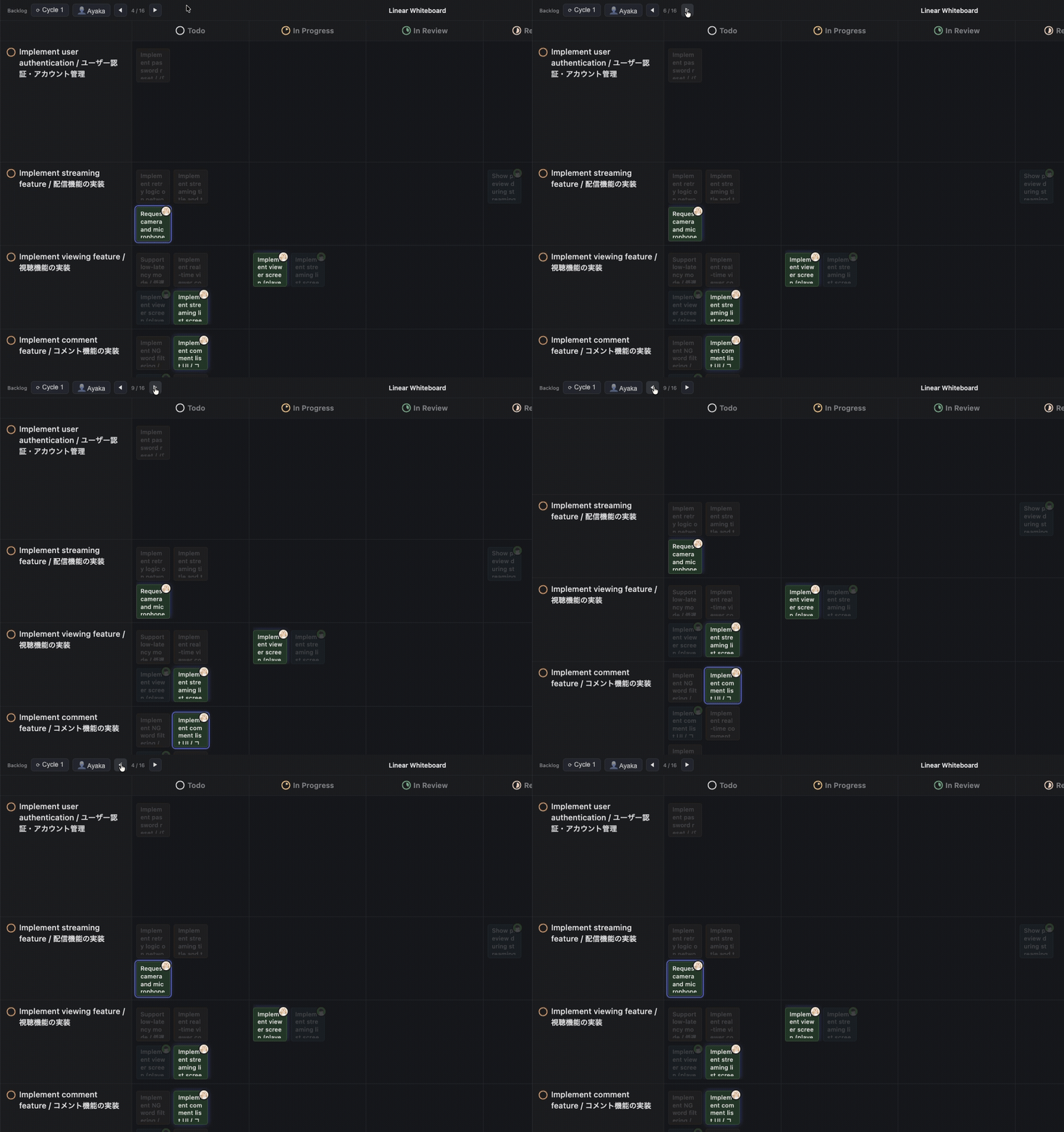
With minor UI tweaks, the implementation matched my vision almost immediately. Also, instead of hiding non-selected cards (the typical filter behavior), I chose to highlight the selected ones. That way, you can still see the context of other tasks even while filtering — which turned out to be very useful.
How the Team Changed After We Started Using It
Here are some changes we saw after adopting this board:
- “This task seems higher priority than what we’re currently working on!” conversations increased
- When tasks are ordered by priority, misalignment becomes easy to spot.
- We started catching stagnation earlier
- Cards stuck in In Review for several days became more visible, leading to earlier “I can help if you’re stuck” offers.
- Making trade-offs within a sprint became easier
- When unexpected tasks came in, reaching consensus on “let’s drop this one this sprint” got smoother.
On the downside, since this is a Chrome extension, it’s not accessible from smartphones or dedicated desktop apps. Also, even for internal-only distribution, the Chrome Web Store review process takes 2–3 days, which slowed down our rollout to the team.
We’ve only just started using it, but this made me realize the potential of building ideal kanban tools with AI.
Distributing the Chrome Extension Within the Team
You can publish a Chrome extension to the Chrome Web Store while restricting access to company members only. This article was helpful for the specific steps:
Distribute to Google Group members - Google
We also automated the submission process using GitHub Actions, so merging a PR automatically triggers a review submission.
Wrap-up
I had half given up on the idea that “the flexibility of physical kanban can’t be replicated in digital tools” — but AI coding has changed that for us.
Describe what you want to visualize in plain language, and a working UI appears in minutes. Free from the constraints of existing tools, teams can now build the visualizations they actually need.
We’ll keep evolving our kanban as our team grows and its needs change.
We’re Hiring
At AnotherBall, we believe in giving teams the freedom to identify and solve their own problems — just like the kanban we built here. If that kind of culture sounds appealing, we’d love to talk.