Embedding UaaL in a SwiftUI App: Managing the View Lifecycle

Hello! We’re the iOS team at AnotherBall.
In a previous post, our mobile team introduced the multi-repository architecture behind Avvy — covering how Kotlin Multiplatform (KMP) and Unity as a Library (UaaL) are built, distributed, and integrated across five repositories.
What makes Avvy technically interesting is how naturally UaaL and native code work together. In this post, we’ll zoom into the iOS side and explain how we manage UaaL views within a SwiftUI app.
Background: The Roles of Unity and Native
A core design principle in Avvy is that Unity is responsible only for 2D avatar functionality. Unity handles avatar rendering and the avatar customization (dress-up) UI. Everything else — all other features and UI — is implemented natively, so we can take full advantage of native capabilities and deliver an experience that feels like a proper streaming app.
UaaL’s Constraint: Only One Instance at a Time
There’s a major constraint when working with UaaL: loading more than one instance of the Unity runtime isn’t supported, so only one UaaL view can be displayed on screen at a time. If you try to display two simultaneously, one of them won’t render.
In Avvy, we show avatars across multiple screens — the streaming view, avatar home, gacha, and more. This means we need to swap the UaaL view between screens on every navigation. But having each screen manage this lifecycle individually is cumbersome and increases the risk of unexpected bugs.
To solve this, we created a dedicated SwiftUI component called UnityView that centralizes this management, allowing each screen to use it just like any other view.
Anatomy of the Streaming Screen
As an example, let’s look at the streaming screen. Unity sits at the bottom layer handling only avatar rendering, with native UI overlaid on top.
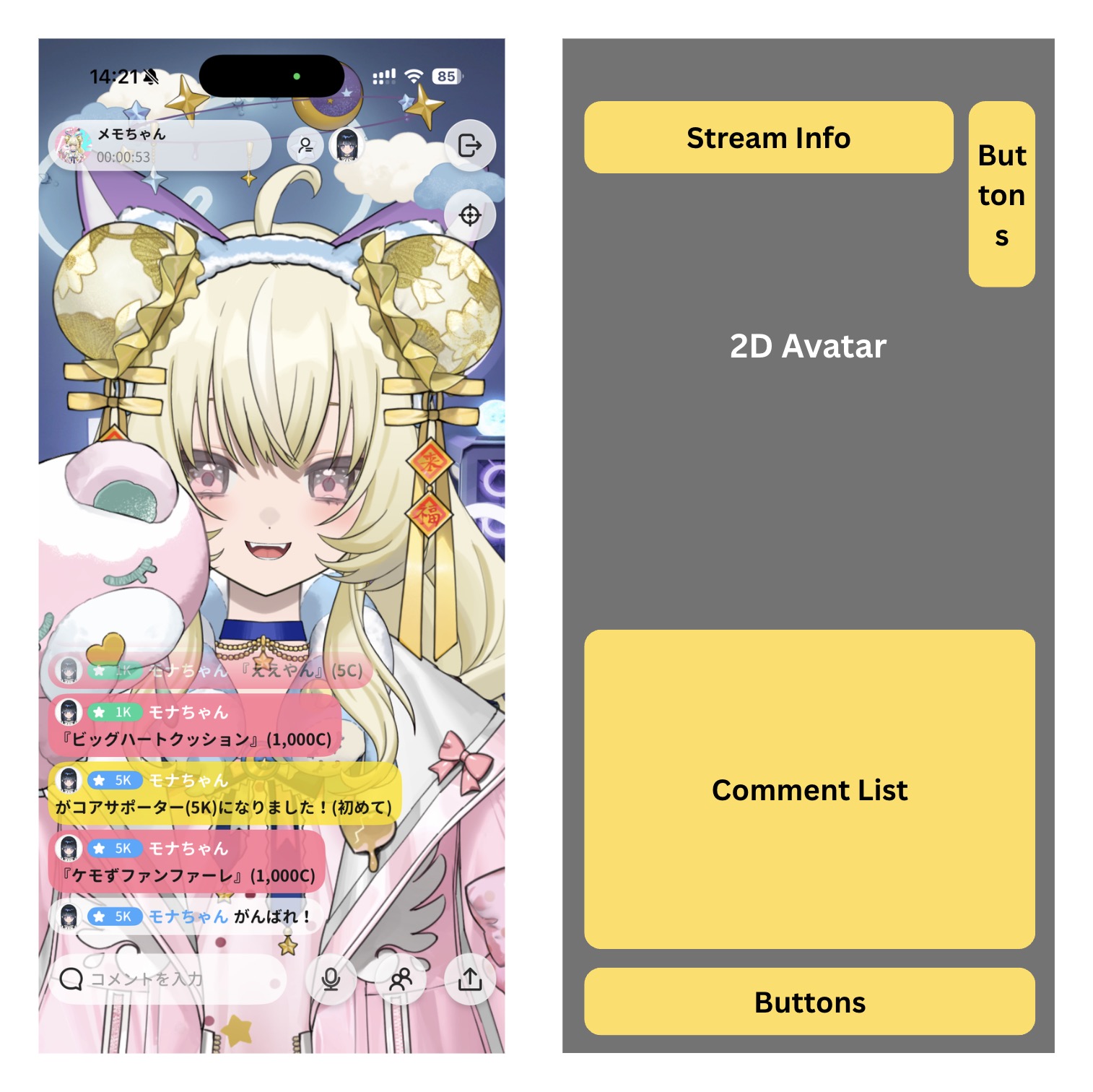
The gray area is Unity’s avatar rendering region, and the yellow areas are native overlays. In Avvy’s iOS app, we call the Unity region UnityView. From SwiftUI’s perspective, it works just like any other view:
1 | UnityView(displayType: .liveStream) // Specify which Unity scene to load |
Developers working on each feature screen don’t need to think about Unity’s lifecycle at all — just open and close the screen, and the avatar display toggles automatically.
Implementing UnityView
UnityView is a UIViewControllerRepresentable that wraps a UnityViewController internally. We need a UIKit view controller because the rendering view provided by UnityFramework is a UIKit UIView.
For example, when presenting the streaming screen as a modal from the avatar home screen, the Unity view needs to automatically move to the frontmost screen. UnityViewController achieves this using the viewWillAppear/viewWillDisappear lifecycle:
1 | public struct UnityView: UIViewControllerRepresentable { |
When the screen appears (viewWillAppear), we add the Unity view; when it disappears (viewWillDisappear), we remove it. It’s an extremely simple implementation, but this alone is enough to guarantee that only one Unity UIView exists on screen at any given time.
Additionally, alongside the view swapping, the Avvy app also pauses and resumes Unity to reduce battery consumption and resource usage.
Wrap-up
When embedding UaaL in a native app, there’s a constraint that only one view can be displayed at a time. By using UIViewController‘s lifecycle to automate view swapping and resource management, and wrapping it as a SwiftUI UnityView, we made it possible to display avatars without worrying about any of that. This architecture allows Avvy to maintain a native app experience while being an avatar-centric app.
In the next post, we’d like to cover how we use the DisplayType introduced in this article to load specific scenes in Unity, and more broadly, how native and Unity communicate with each other.
We’re Hiring
At AnotherBall, we care about building testable, maintainable architecture — and we’re always looking for engineers who share that mindset. If this kind of work excites you, we’d love to talk!